Log an expense
Keep expenses with the property they relate to. Manual entry works on Free; receipt scanning is available on Solo and above, including the Growth trial.
Open Finance, then the property
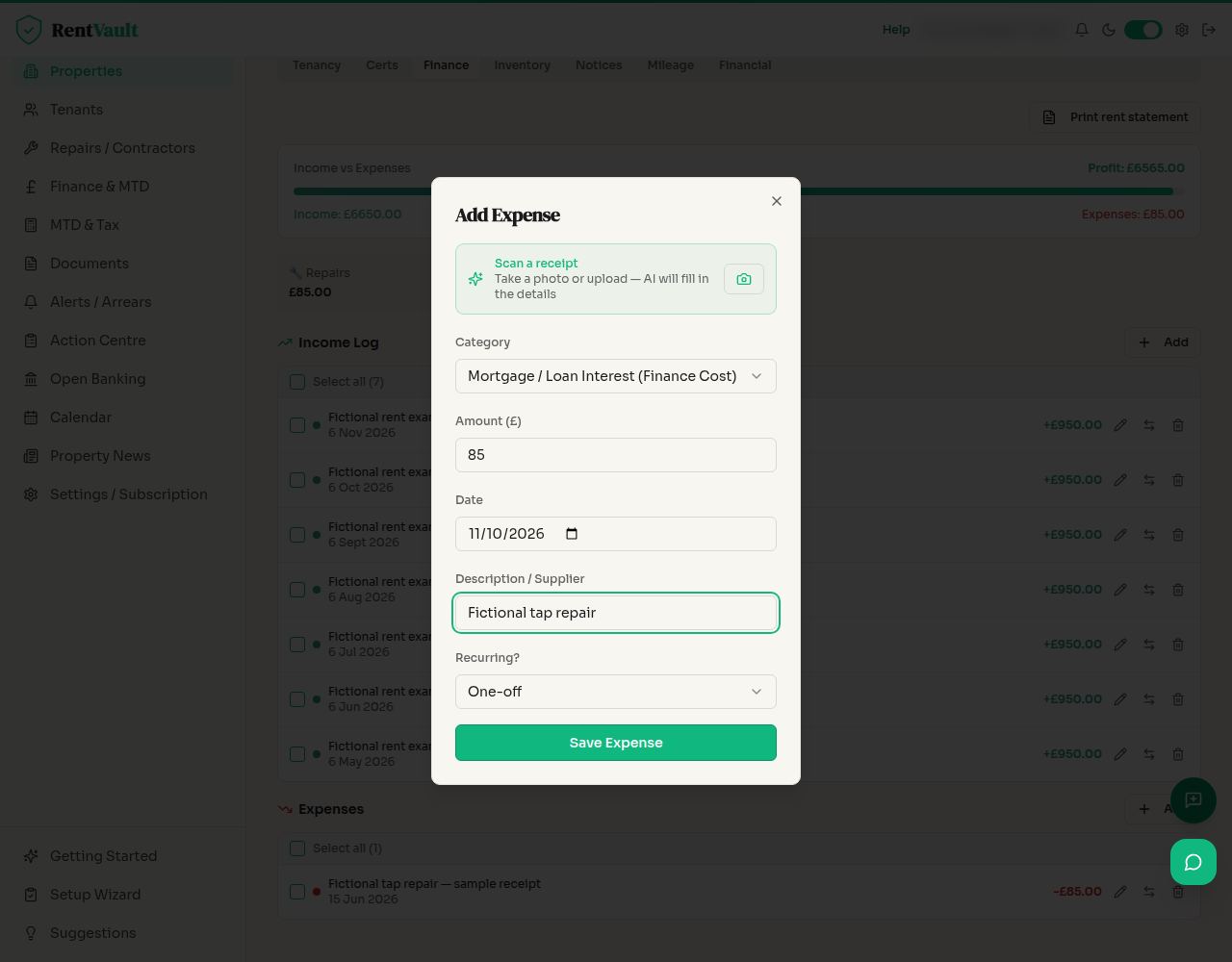
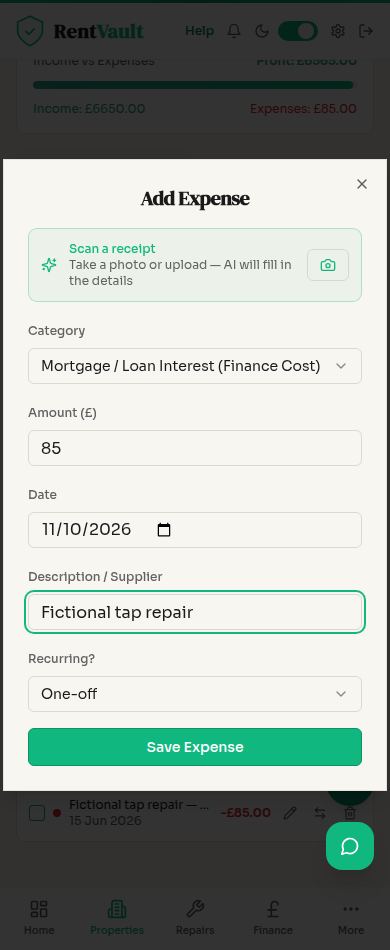
Finance is the portfolio overview. Select the relevant property, open its Finance tab, then choose Add beside Expenses to open Add Expense.
Enter or review the amount
Enter the amount, transaction date and description manually, or use Scan a receipt if your plan includes it. Review any scanned information against the receipt or invoice before saving.
Check the category and property
Assign the expense to the correct property and category. A suggested category is not tax advice; ask your accountant if you are unsure.
Save Expense and review the record
Select Save Expense, then check it in the property’s Finance tab and the portfolio Finance overview. Keep the supporting receipt with your records.
Avoid duplicate entries
If you use CSV import or a bank transaction instead, check whether the expense is already recorded before importing or matching it.
Receipt scanning can make mistakes. Review the extracted figures and keep your original supporting records.
Screenshot guide
Recording a property expense
Open Finance — sign in to use the app.
Need more help? Read how to use Iain, or email hello@rentvault.co.uk.